Appearance
Create a new attendance request
An attendance request is an employee’s request for time off, a business trip or similar, over a date range — submitted for a lead or approver to review.
1. Open the Attendance requests page
Go to HR > Attendance requests and click + in the top bar.
 The Add button on the Attendance requests page
2. Set the date range
Under Basic information, fill in Date from and Date to — the range the request covers.
 The date range
3. Pick the Attendance event type
Pick the Attendance event type — what kind of request this is. Required. See Attendance event types.
 Picking the Attendance event type
4. Pick the Employee and Approver
Pick the Employee this request is for and the Approver who should review it. Both required — only users who already have an HR profile appear in the Employee picker.
 Picking the Employee and Approver
5. Describe the request
Fill in Description — the reason for the request. Required. Value is optional, for example a number of hours.
 The Description and Value fields
NOTE
Is approved is left off here — leave it to the approver to turn on once they’ve reviewed the request.
The Attendance events and Attendance certificates tabs only apply once the request has been saved — see Update an attendance request.
6. Save the request
Click Save. The new request opens on its own page.
 The Save button
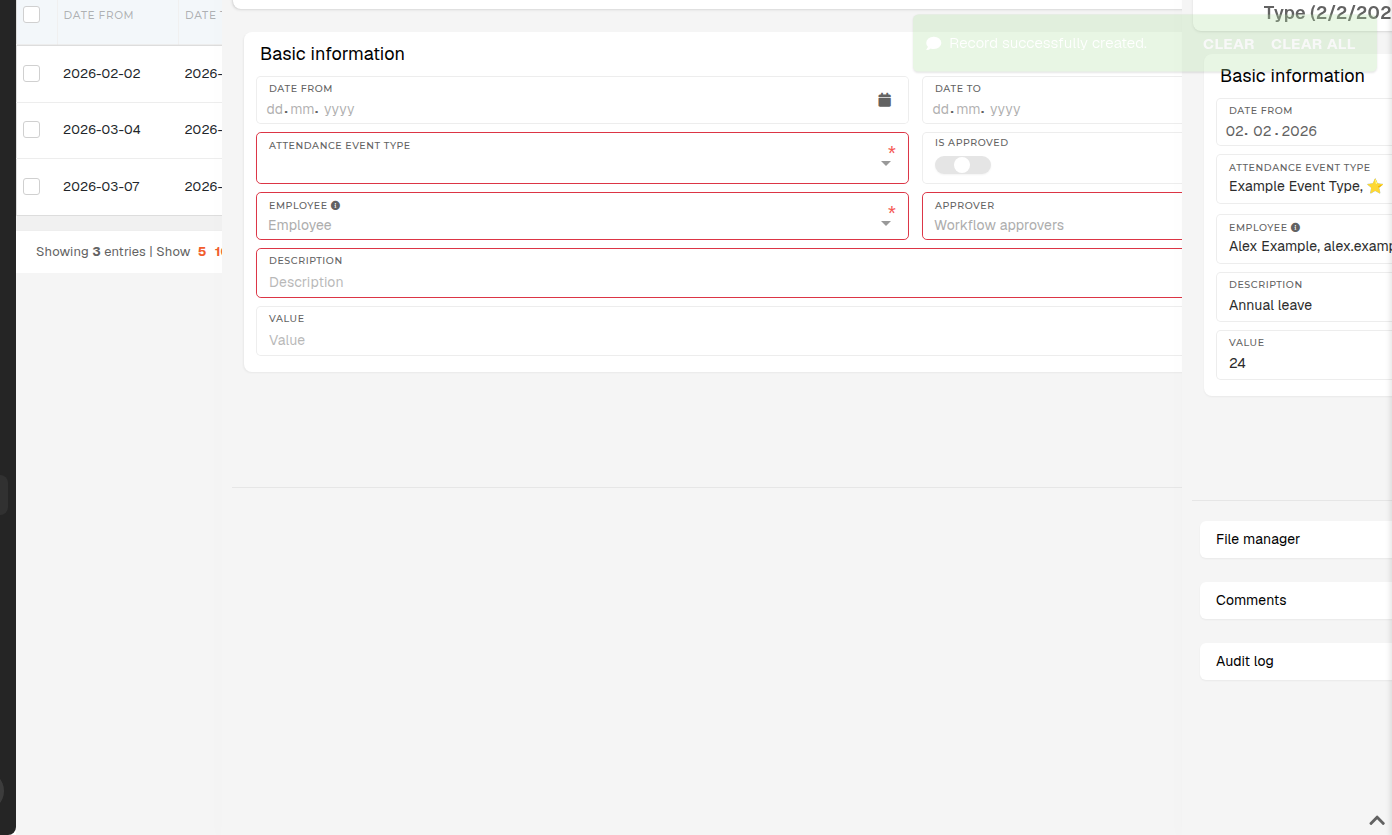 The new attendance request