Appearance
Prepare a rental quote
A quote on a Rental opportunity is a rental quote: its prices are monthly rental fees, it runs for a set number of months, and it turns into a rental sales order.
Create the quote from an opportunity whose type is Rental. Everything below appears only on quotes of rental opportunities.
1. Set the rental period
In Terms & Conditions, pick the number of months in Rental period (months) (1–36). The field is required on rental quotes and is printed on the quote PDF.
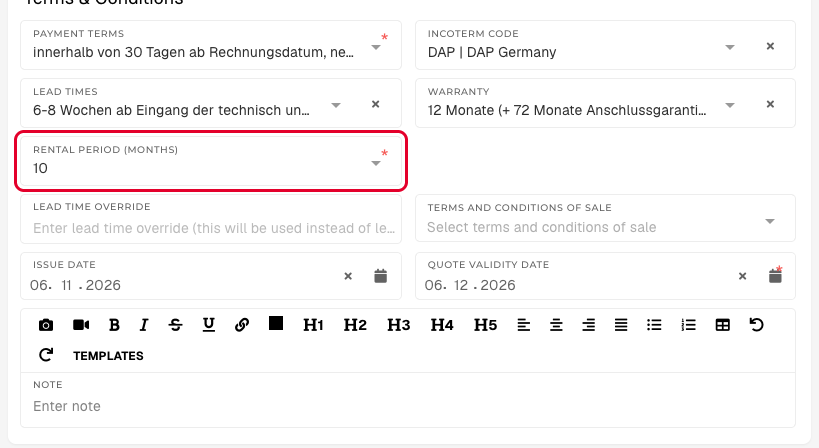 Rental period in Terms & Conditions
2. Add rental items
Add items the same way as on any quote: Quick Add, Add from Configurator or Add local products below the product list.
 Adding items to a rental quote
NOTE
You don’t pick serial numbers on the quote — the units are assigned on the sales order.
3. Set rental prices to a percentage of the sale price
To price every item at once, click Actions above the product list, open Set rental prices to % of sale price, enter the monthly fee as a percentage of the item’s sale price from the price list (for example 10) and click Apply.
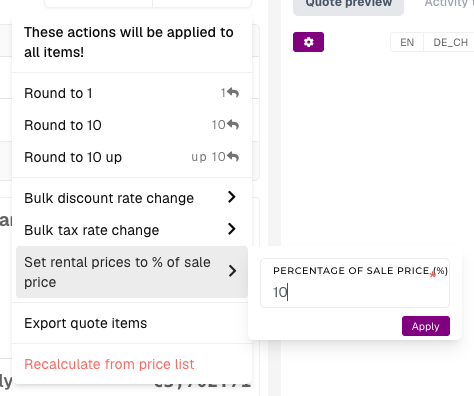 Set rental prices to % of sale price
Every item gets the new price; you can still change a single price in the list afterwards.
4. Check the prices
On a rental quote all prices are per month:
- Trs. price (transfer price) is always 0 and can’t be changed.
- Deliver item from HQ (the truck switch) is off and locked — rental units are shipped from your own stock.
- Cost Analysis shows the monthly Sales Price, the Total rental value for the whole rental period (sales price × months) and Net profit monthly. Purchase price and margin are hidden.
- Order Summary ends with Gross monthly, the monthly amount including tax.
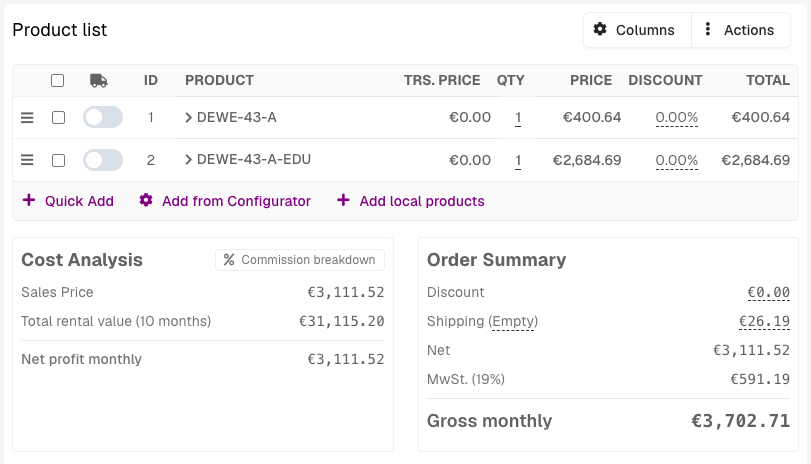 Product list, Cost Analysis and Order Summary of a rental quote
5. Create the rental order
When the customer accepts, click Create order (the cart icon at the top of the quote). Rental orders are always delivered and billed by you, so the only delivery option is to not create an HQ order. The new sales order is a Rental monthly order and keeps the rental period.
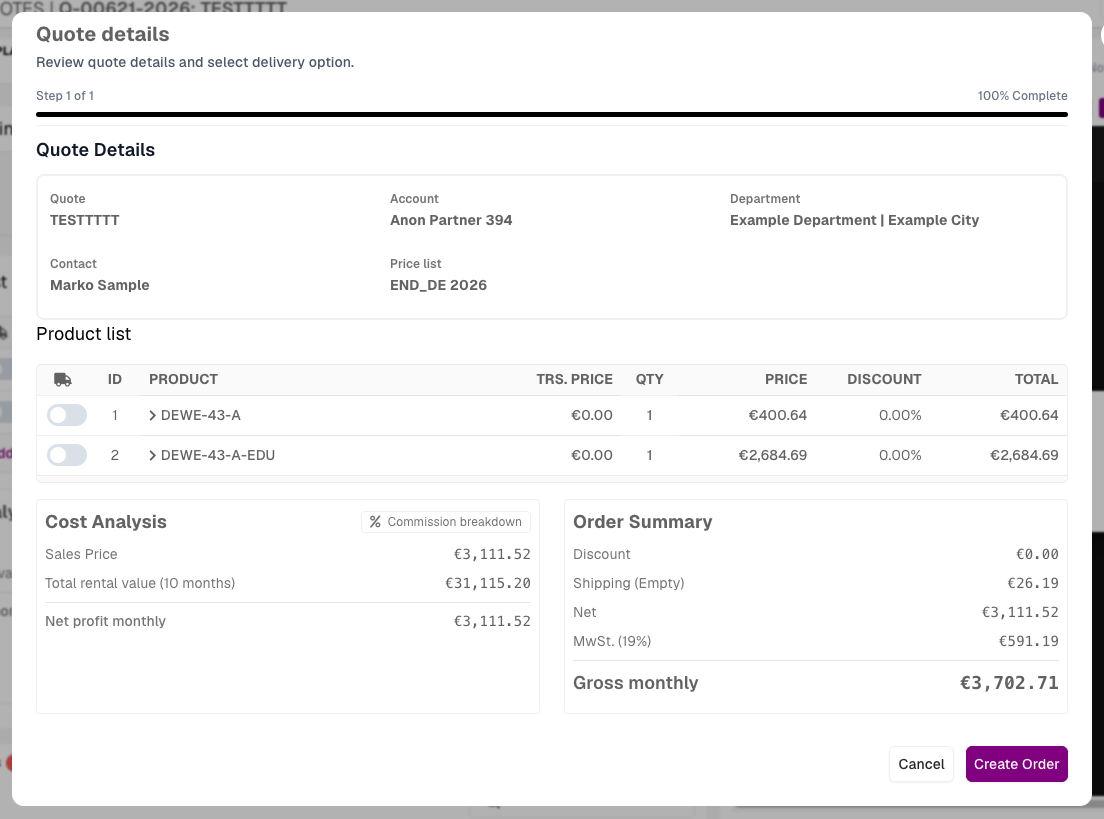 Create order from a rental quote
TIP
Next: Invoice a rental order.