Appearance
Set up software licences
Every Dewesoft software sold gets its own licence key. The key is created automatically when the sale order is created — from the configurator checkout or when a quote is turned into an order — so the product settings decide what each licence contains. This guide shows which settings in a product's Configurator data matter for licences, and where you then find the licence in the ERP. For DewesoftRT see Set up RT licences.
1. Mark the product as software
Open the software product, expand Configurator data and turn on Is software in Type information. Only products with this switch get a licence key. Packages (e.g. DSA) use Is software package and options or plugins use Is software option/plugin — they do not get their own key but are written into the licence of the software they are sold with.
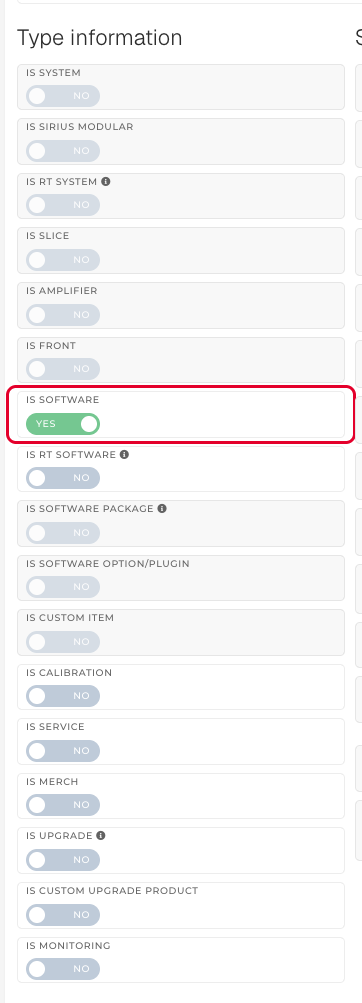 Is software turned on for a software product
2. Choose the licence prefix
In Software information, License prefix sets the first letters of every licence key made for this software, e.g. DWL-TPHV-B7XK-S111. Leave it empty for standard DWL keys.
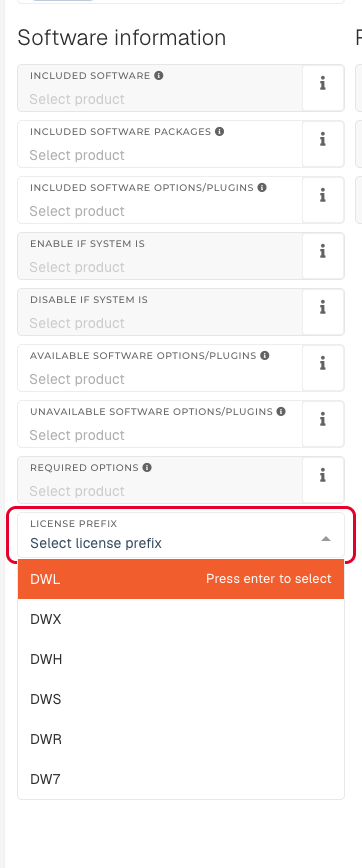 The License prefix choices in Software information
| Prefix | Use for |
|---|---|
| DWL | Standard Dewesoft licences. Used when no prefix is set. |
| DWS | Rental software. Licences ordered in the configurator run for 12 months from the invoice date, and logged-in customers can extend them with Extend licenses. |
| DWR | DewesoftRT — see Set up RT licences. |
| DWX, DW7, DWH | Older key formats. Keep them only on the products that already use them. |
3. Decide which options and packages come with it
The licence lists the options and packages that are sold together with the software on the order. These settings in Software information decide what the customer can pick:
- Available software options/plugins / Unavailable software options/plugins — which options are offered with this software.
- Included software options/plugins and Included software packages — come free with the software and are always written into its licence.
- Required options (on an option) — options it needs; the configurator adds them automatically.
4. Allow upgrades
Customers can upgrade an existing licence in the configurator by entering its key. The settings below Software information decide what it can be upgraded to:
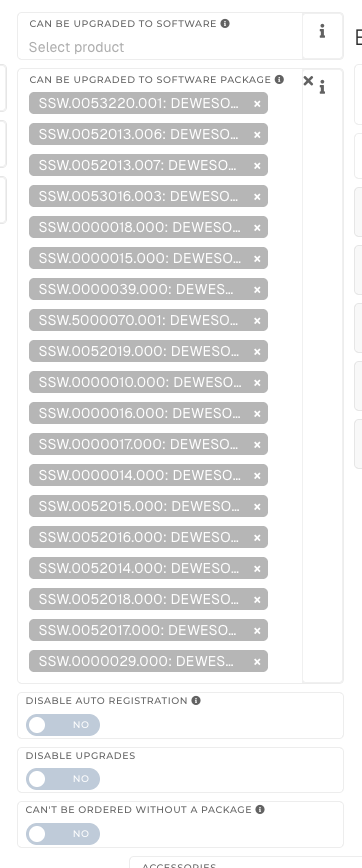 Upgrade and registration settings
- Can be upgraded to software — the software products this licence may be upgraded to. Anything else is refused with You cannot upgrade to selected software.
- Can be upgraded to software package — packages offered when upgrading.
- Disable auto registration — licences for this software always have to be registered by the customer (see the next step).
- Can't be ordered without a package — the configurator only lets the customer order it together with a software package.
IMPORTANT
A licence can be upgraded only once, and evaluation licences cannot be upgraded. The upgrade creates a new key and the old one stops working. Disable upgrades currently has no effect.
5. Include software with a system
On a system product, Included software in Software information is the software that comes with the device, together with its Included software packages and Included software options/plugins. When such a system is ordered, the included software gets its own licence, marked as bundled with the system.
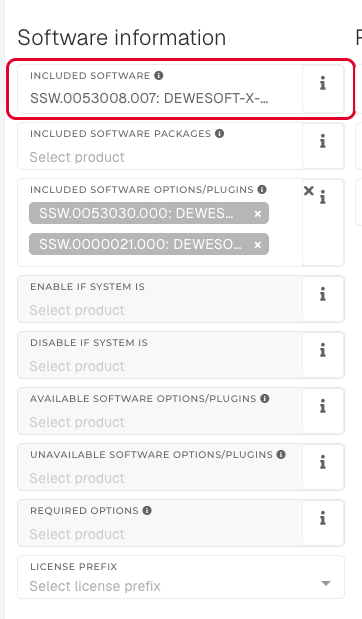 Included software on a system
A bundled licence that matches the system's included software, packages and options exactly does not have to be registered by the customer — it is auto registered. As soon as the customer changes the software (adds an option, picks another package), the licence has to be registered. Disable auto registration in System information turns auto registration off for the whole system.
NOTE
Both Disable auto registration switches apply to orders placed in the configurator. Quotes turned into orders in the ERP use their own check.
6. Check it in the configurator
Open the system in the configurator. Included software lists the software, packages and options that come with it.
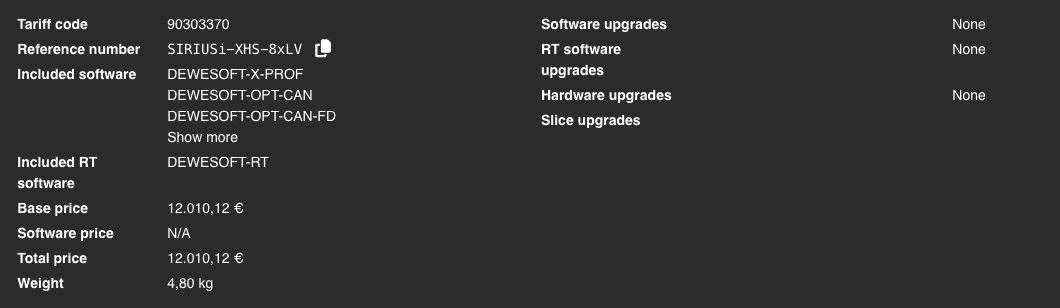 Included software in the configurator
The Software tab lets the customer change it — upgrade to another package or add options. Each change is written into the licence on the order.
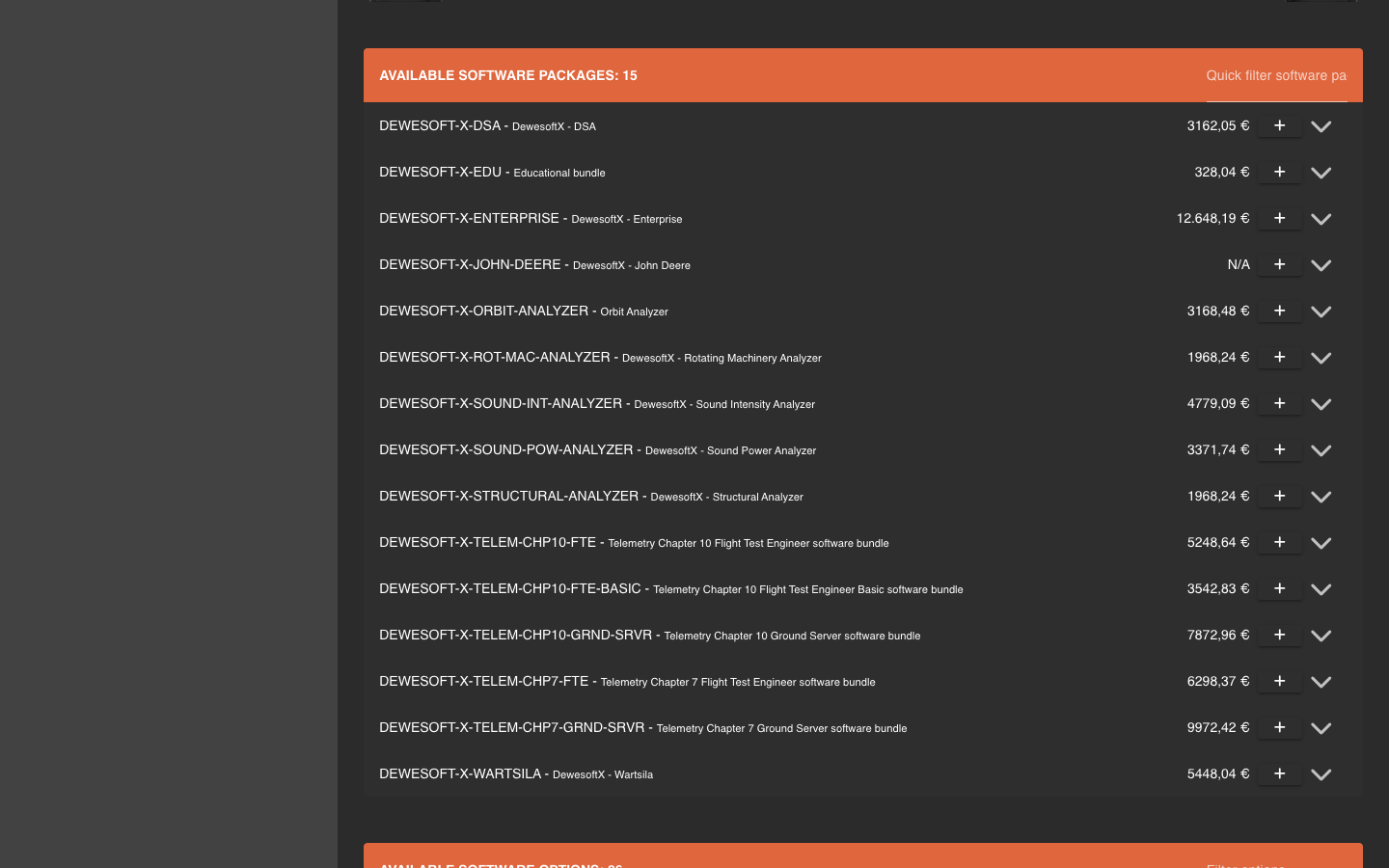 The Software tab of a system
7. Find the licence
Go to Products → Licenses and open the licence. Software, Packages and Software options show what it unlocks.
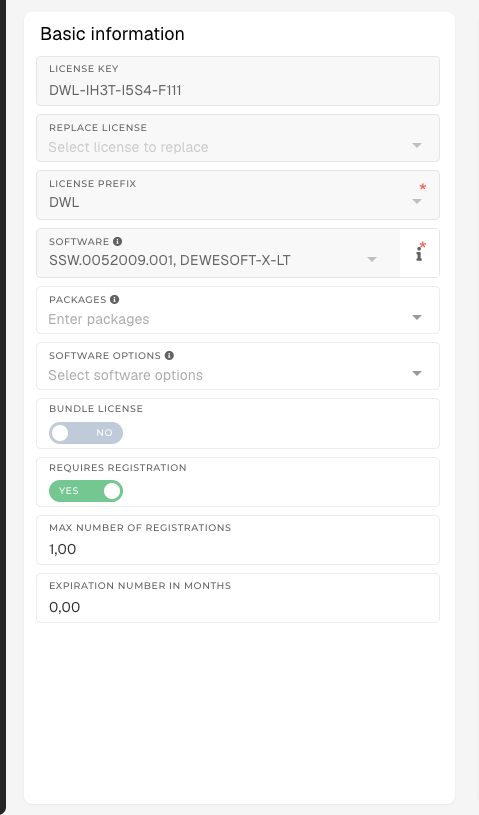 Basic information of a licence
One licence is created for every piece of software on the order — three units of a software product get three keys. Under Order information you see the order item it belongs to and the device it is linked to.
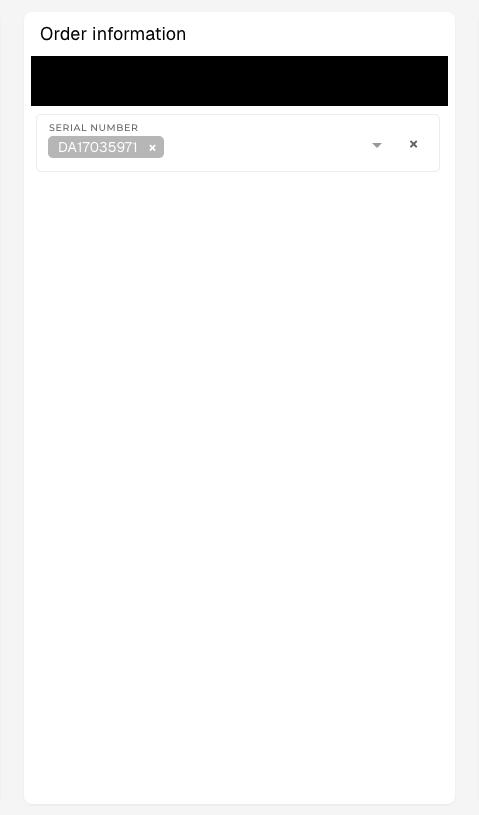 Order information of a licence
8. Link it to the device
The licence is linked to the serial number of the device automatically when serial numbers are added to the order item — with Link all serial numbers or when the QC task is created. To link one by hand, click Link existing software license under the software item on the sale order, or pick the licence in License on the serial.
 The licence on the serial number